Creating a Custom CRS
This tutorial covers finding specific details of a coordinate reference system (CRS) and modifying a copy of these details to define a new CRS.
Included in this tutorial:
Creating a custom CRS
Software version in examples: QGIS-LTR 3.40.5-Bratislava
Tutorial Data: The tutorial uses the 1:10m Admin 0 - Countries shapefile downloaded from Natural Earth.
Credits: Sally Kaye and L. Meisterlin (2025)
Related Tutorials:
The data used in this tutorial is…
Natural Earth. “Admin 0 - Countries.” [shapefile]. 1:10m Cultural Vectors, version 5.1.1. 12 May 2022. Accessed 17 June 2025 from https://www.naturalearthdata.com/downloads/10m-cultural-vectors/.
Creating a Custom CRS
In the demonstration below, we show the following steps to create a new custom CRS as a direct copy of an existing CRS:
Access the settings to options for creating a User Defined CRS by clicking through Settings > Options in the main menu, then accessing the User Defined CRS options under CRS and Transformations (in the Options window’s navigation on the left).
Add a new custom CRS draft with the green + button.
Name the new, custom CRS in the text box (called “Name”).
View the format options for CRS parameters. In our example, we follow the recommended WKT (Well-Known Text) format.
Click the copy icon to select a base CRS. As in other instances where you might change or access coordinate systems, you can use the search bar, browse through a list of recent CRSs, or use the dropdown categories to view all CRS presets. In this example, we again select World Miller Cylindrical and click OK. This will populate the Parameters box with the CRS’s parameters in whichever format is selected.
At this step, you can edit the base CRS’s details and add the new modified CRS for use later; in this example, we click Cancel and close the window without making any changes.
demonstrating modifying CRS details and adding a custom CRS
Once a modified CRS is created, the new CRS can be applied to a map canvas or an individual layer. (It is not automatically applied to a map or a layer, but now appears as an option for your use.) It can be found under User-defined in the “Predefined Coordinate Reference Systems” dropdown lists available wherever CRS options are displayed.
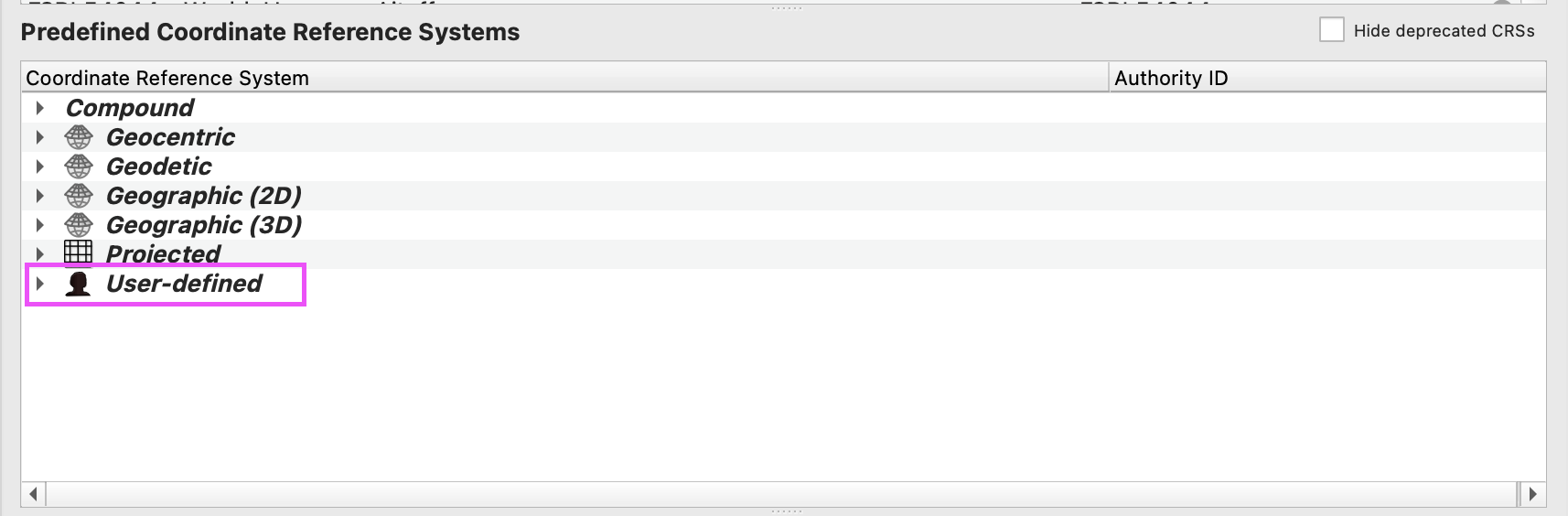
accessing custom coordinate systems